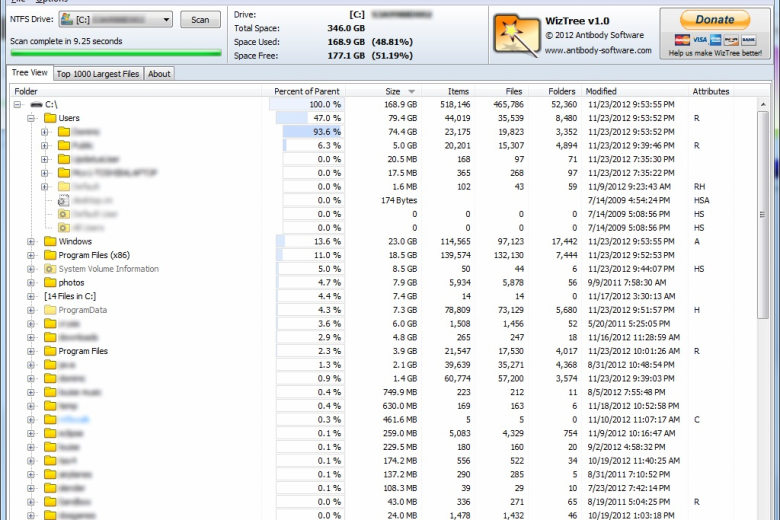
WizTree is a tool which aims to help you find which files and folders are grabbing the most disk space. If that sounds a familiar idea, then it should – there are lots of programs doing the same thing – but WizTree still manages to add a new ingredient: speed.
Getting started here, for instance, works just like many similar applications, in that you’ll choose the drive you’d like to check, before clicking “Scan”. But rather than crawling manually through every folder, WizTree just accesses the drive’s MFT (Master File Table, the NTFS index of everything the drive contains), and that means it’s able to display a report in seconds (2.43 on our test PC).
The report itself opens with a tree view, which displays the folders using the most drive space. We saw that, for instance, our “Program Files (x86)” folder was using 14.3%. Why? Expanding that listed its subfolders, again in order of space consumed, and it turned out that the Steam folder was the main culprit, being responsible for 40.3% of that consumption all on its own.
And if that’s not enough, clicking the “Top 1000 Largest Files” tab does precisely what its name suggests, displaying all your most space-hogging files in a single list. Basic details (size, last modified date) are visible up-front, but you can also view the file properties as usual, and there are various right-click options to open the file’s folder in Explorer, open a command prompt there, or just delete it immediately.
WizTree’s hard drive reporting and management features are nothing too special, then. But they’re good enough to get the job done, and the program’s extra turn of speed means you’re more likely to use it (especially as the program is portable, so you can run it from just about anywhere).
Verdict:
There’s no tedious waiting around here, WizTree provides a near-instant list of your hard drive space hogs – very impressive
(1)
System & Desktop Tools
Specifications
Changelog
Recent 4.32 changes include (see release notes for more):
– Files and folders can now be renamed. Press F2 or click on a file, then after a short pause click on the file name again to rename it. Renaming can be disabled via Tweaks->Enable Rename setting
– Header section (top of screen area) can be toggled off and on by pressing Ctrl+H – This provides some more space for data display. Reminder: the font size can be adjusted by holding CTRL key and scrolling the mouse wheel up or down
– Fixed possible security issue with illegal file names (e.g. containing a trailing space) that could cause the wrong file to be opened by WizTree when double clicked
– Thai characters typed into file search would not be displayed correctly – fixed
– Scan progress indicator in taskbar: any issues detected when enabling this will cause it to be disabled instead of displaying an initialization exception error on startup
– Various UI improvements
Deal of the Day
-57%
Acronis True Image 2026 Advanced [1-D, 1-YR, 50GB]
Back up or restore a few files or your entire hard drive
Offer Ends In: